Who it's for · The problem it solves
Who it's for
Belgian VAT-registered businesses that invoice in Odoo, and the accountants who file their listings.
The problem it solves
Every year the client listing, and for EU sales the intra-Community listing, must reach Intervat as a valid XML file. Building it by hand from invoice exports is slow, and one bad VAT number gets the file rejected. This module builds both files from your posted invoices and checks them first.
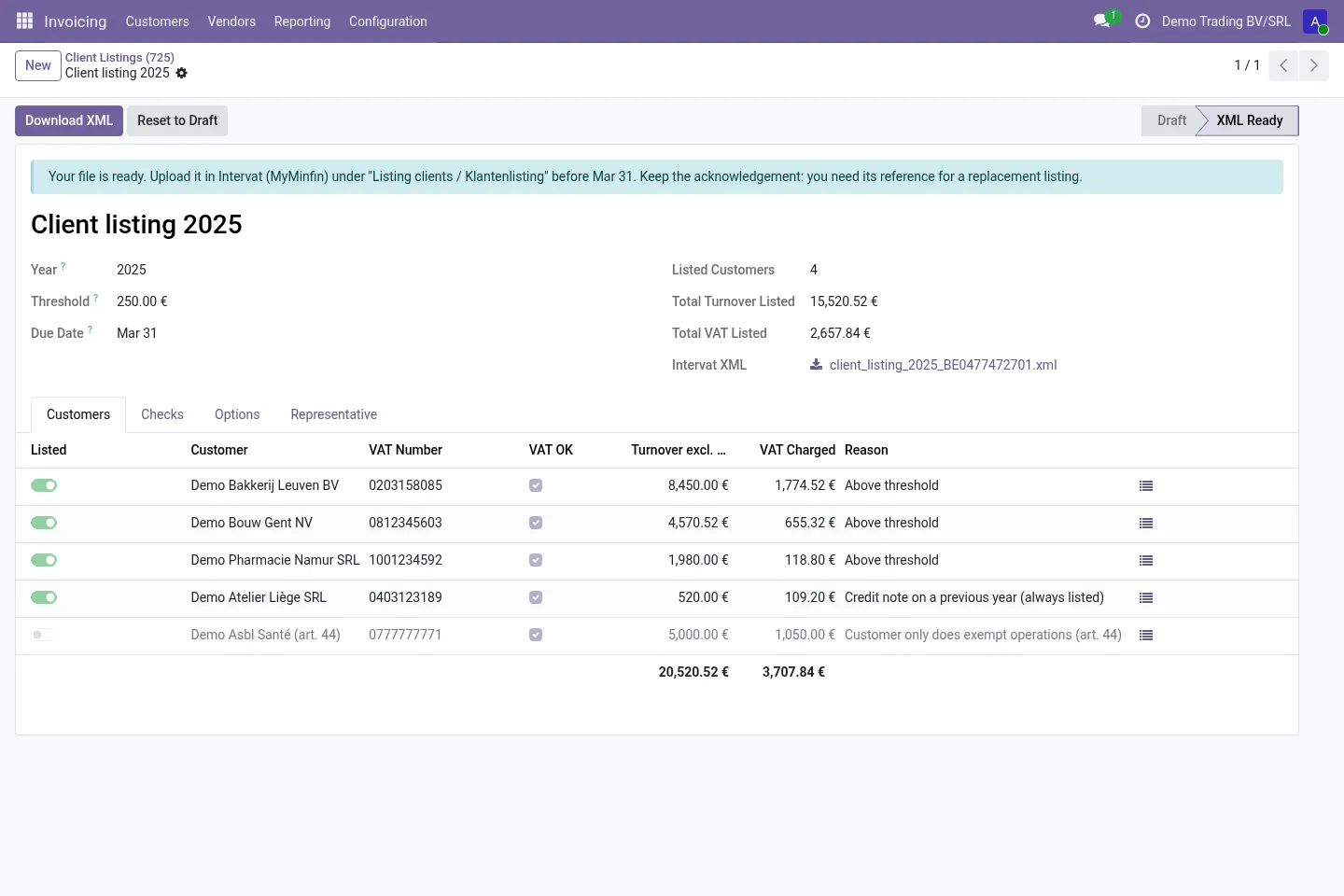
Belgian VAT-registered businesses file an annual client listing (form 725) and, if they sell to other EU countries, an intra-Community listing (form 723). This module reads your posted customer invoices and credit notes in Odoo, checks the VAT numbers and generates the Intervat XML file that you or your accountant upload in Intervat.
What it does
Annual client listing (725)
Every Belgian VAT-registered customer above the €250 threshold, with turnover and VAT for the year. Credit notes on sales of an earlier year are always listed. The due date (31 March) is shown on the record.
Intra-Community listing (723)
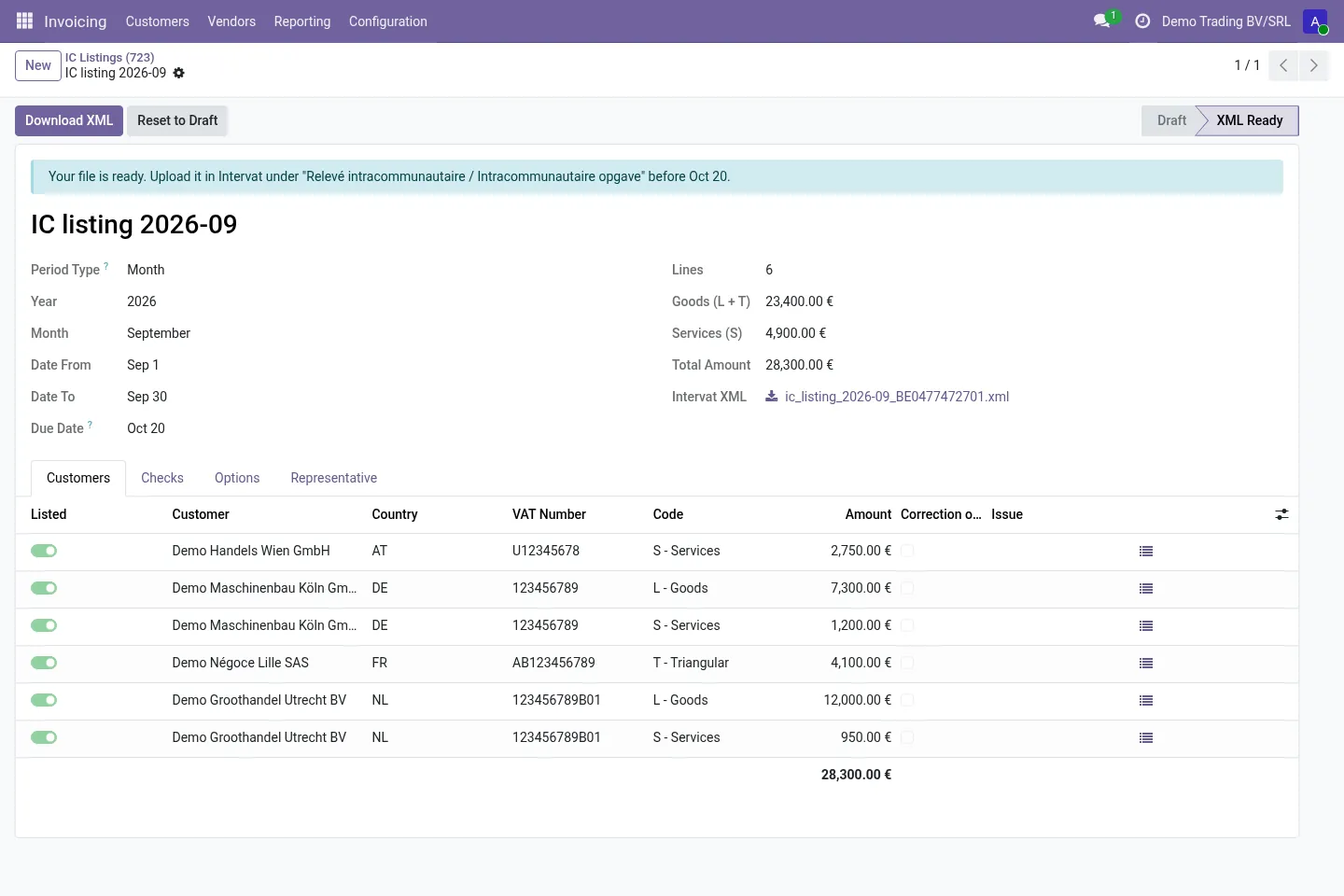
One line per EU customer and code: L goods, T triangular, S services. Monthly, quarterly or annual periods, credit notes netted in the period, due date shown.
Intervat XML in one click
Files follow the official Intervat schemas (client listing and intra-Community consignments, version 0.9). The automated tests validate them against those schemas on every Odoo version.
Checks before you file
Invalid Belgian VAT numbers (mod-97), missing VAT numbers, EU numbers in the wrong format, Belgian or UK numbers in the IC listing, Northern Ireland (XI) services and zero lines are flagged with a plain explanation.
Guided first setup
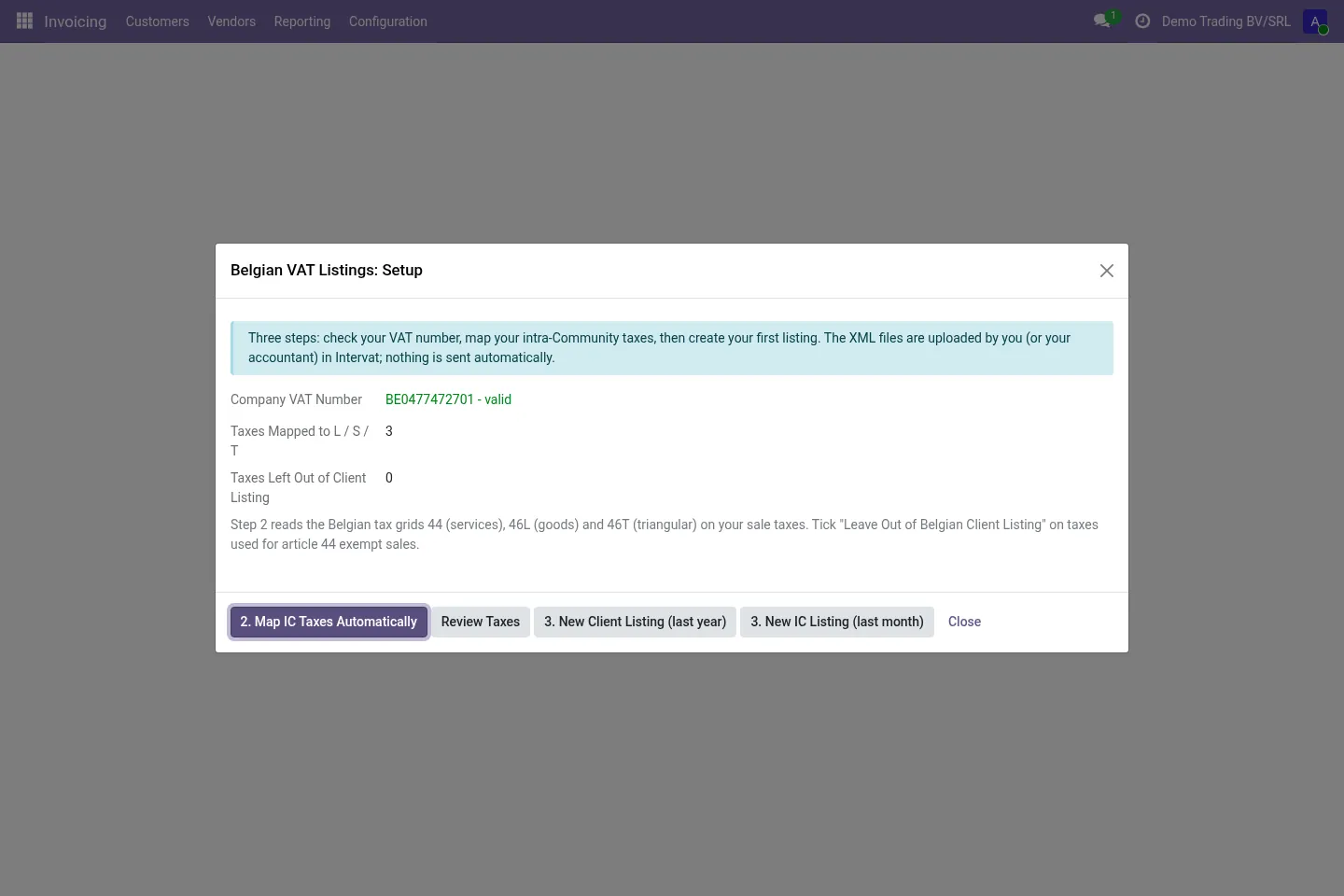
The setup screen checks your company VAT number and currency and maps your sales taxes to L / T / S from the Belgian grids 44, 46L and 46T. Works with the standard Belgian chart and with your own taxes.
Special cases covered
Mixed taxable persons (leave art. 44 exempt sales out), small-business franchise (nil listing with turnover), cessation of activity, replacement listings, corrections of earlier IC periods and an accounting firm filing as representative.
Before you start
- Your company needs a Belgian VAT number and the euro as company currency.
- Customer invoices and credit notes for the period should be posted, with the customers' VAT numbers filled in.
- You (or your accountant) need access to Intervat to upload and submit the file.
Install
- Buy and download the module for your Odoo version on the Odoo Apps Store, or install it from the Apps menu if your database is linked to your store account.
- Copy the folder
l10n_be_intervat_listingsinto your addons path (on Odoo.sh: commit it to your repository) and restart Odoo. - In Apps, click Update Apps List, search for Belgium VAT Listings and install it.
Guided setup
- Open Accounting / Invoicing › Reporting › Belgian VAT Listings › Setup and check the company VAT number and currency.
- Click 2. Map IC Taxes Automatically. Use Review Taxes to check the result: each sales tax gets its Belgian IC Listing Code (L, T or S), and art. 44 exempt taxes can be marked Leave Out of Belgian Client Listing.
- Optional: on customers whose operations are all VAT-exempt under art. 44, tick Only VAT-Exempt Operations (art. 44).
Daily use
- Go to Belgian VAT Listings › Client Listing (725) for the year, or IC Listing (723) for the month or quarter, and create a new listing.
- Click Compute. Review the Customers tab and fix anything listed under Checks.
- Click Generate Intervat XML, then Download XML.
- Upload the file in Intervat, submit it and keep the acknowledgement. The module does not file anything for you.
Screenshots
All screenshots show fictitious demo data.
FAQ
Does it submit the listing to Intervat?
No. It generates the XML file. Logging in to Intervat (with eID, itsme or your accountant's access), uploading, submitting and keeping the acknowledgement stay with you or your accountant.
Which amounts are used?
Amounts in euro from posted customer invoices and credit notes. Draft and cancelled invoices are ignored.
Can my accounting firm file it for us?
Yes. Each listing has an optional representative block for the accounting firm that files on your behalf.
We made a mistake in an earlier period. Can I correct it?
Yes. You can make a replacement client listing, and the IC listing supports corrections of earlier periods.
Is the interface translated?
Not yet. Menus and screens are in English; the XML file itself is language-neutral.
Is it legal or tax advice?
No. The module follows the published instructions of the Belgian FPS Finance. You or your accountant remain responsible for what is filed.
Does it work on Odoo Online?
No. Odoo Online does not allow third-party modules. Use Odoo.sh or an on-premise installation.
Does it work on Odoo Enterprise?
It is tested and listed on Community. It only depends on Accounting / Invoicing, but we have not tested it on Enterprise, so we do not claim it. Planning to use Enterprise? Email support@normalane.com before you buy.
How do I install it?
Buy it for your Odoo version and download the zip from the store (or later from your orders page). Copy the folder into your addons path, update the apps list and install. On Odoo.sh, commit the folder to your repository. The Install section has every step.
What happens when I upgrade Odoo?
Since Odoo 13 the Odoo Apps Store sells each Odoo version of a module separately, so a new major version means buying the module for that version. Bug-fix updates within your version are free: download the latest zip from your orders page and replace the folder. Email us before a major upgrade and we will share any migration notes.
Does it work with several companies?
Yes. Data is kept per company with Odoo's standard multi-company rules.
How quickly do you answer support?
Email support@normalane.com or use the support button on your Odoo Apps Store orders page. A person reads every message and replies on working days (CET). Bug fixes for the purchased version are free.
Ready to use Belgium VAT Listings?
€19, one-time, per Odoo version. Bought and downloaded on the Odoo Apps Store.
In het Nederlands
Maak de jaarlijkse klantenlisting (formulier 725) en de intracommunautaire opgave (formulier 723) in Odoo uit uw geboekte verkoopfacturen en creditnota's, als Intervat-XML die gecontroleerd is tegen het officiële schema. U uploadt het bestand zelf in Intervat.
Need help?
Email support@normalane.com with your Odoo version and edition (Community or Enterprise). Bug fixes for the purchased Odoo version are free.
Independent module, not affiliated with or endorsed by the Belgian FPS Finance or Odoo S.A.